

Service and Sales teams across the UK lose hours every week because they switch between their CRM and their inbox. Every unlogged email is a gap in the customer record, and mainly, every manual copy-paste is a few minutes that should have gone into selling.
A properly configured Salesforce Outlook Integration eventually closes that gap by connecting Microsoft Outlook and Salesforce, so calendar events and contacts can stay in sync automatically.
This guide is especially written for UK-based operations, revenue teams, and IT who are past the "what is this" stage. You already know Outlook and Salesforce need to talk to each other. What you need now is a clear understanding and a practical path from decision to a working integration that your team actually adopts.
Below, we will walk through why this integration matters and understand it, the setup options available, and a five-step process your team can follow with confidence.
Why This Integration Matters for UK Teams
Email remains the backbone of business communication, and it actually consumes far more of the working day than most leaders realise. Research from McKinsey Global Institute, cited in email productivity research published on Clean Email. It found that knowledge workers spend roughly 28% of their workweek and around 11.2 hours simply managing email.
Now layer CRM admin on top of that. Every one of those emails that relates to a case, a deal, or an account has to be logged somewhere, and even in the most under-integrated organisations, that logging is actually a manual process; this is exactly the friction a working Salesforce Email Integration is built to remove.
Especially for UK businesses, the stakes are rising. According to CRM adoption data published on Capsule CRM's blog, the UK CRM software market is projected to reach US$5.2 billion in 2025 and will continue to grow at nearly 9% a year through 2030. As adoption grows, so does the gap between teams who integrate their tools properly and teams who don't.
A well-planned Salesforce Outlook Integration isn't a nice-to-have anymore. Furthermore, it's becoming the baseline expectation for any service, UK sales, or account management function that relies on Outlook as its primary inbox.
There is also a management visibility problem that integration solves quietly. Without the automatic syncing, sales managers only see what reps remember to log manually, and it means pipeline reviews and forecasting are mostly built on incomplete data. Once the emails and meetings sync automatically, that visibility gap closes without adding a single extra task.
How Can You Understand Your Options For Salesforce Outlook Integration?
Before touching any settings, it helps to understand what Salesforce integration actually means in a Salesforce context, because there is not only one method. Salesforce currently offers two supported native paths for connecting with Outlook: the Outlook Integration panel (a side panel inside Outlook itself) and Einstein Activity Capture, which automatically syncs events and emails in the background without requiring manual logging. The old version of "Salesforce for Outlook" desktop client has been retired by Salesforce, so any UK organisation still running it should obviously treat migration as urgent.
A true Microsoft Outlook integration typically combines both aspects; the side panel gives reps a live view of Salesforce records inside their inbox, while Einstein Activity Capture handles the automatic syncing of calendar events and emails in the background. Choosing the right combination depends on your data governance requirements, your team size, and how much manual control your reps need over what gets logged.
Especially for UK organisations working under UK GDPR, this decision also has a compliance dimension. Einstein Activity Capture stores certain data outside Salesforce's core database, so the retention settings and data residency should be reviewed with your admin or a Salesforce partner before rollout.
It is also worth deciding early whether your organisation needs full two-way sync or whether a lighter one-way setup will be enough for now. Some UK teams start with email logging only and then add calendar sync once the first phase has proven reliable. This approach reduces risk without slowing down the wider rollout timeline.
How to Integrate Salesforce with Outlook: A 5-Step Guide?
Once you have chosen your integration model, the actual Salesforce Outlook Setup process follows a predictable sequence. Here is how to move from decision towards a fully working integration.
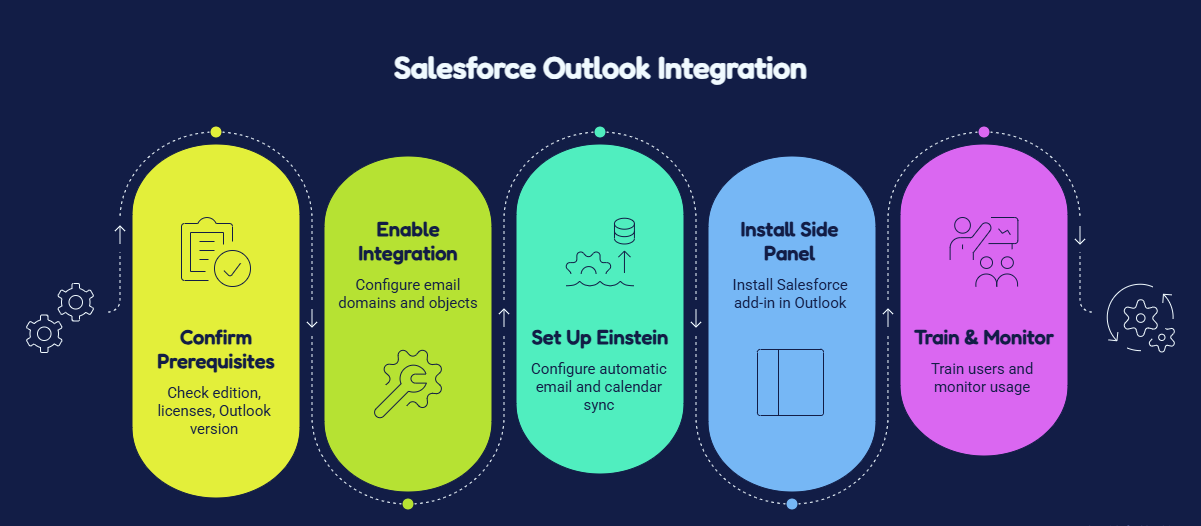
Point 1: Confirm Prerequisites and Licensing
Before starting anything else, confirm your organisation has the correct Salesforce edition and user licences to support the integration process. Most Enterprise and above editions include Einstein Activity Capture and Outlook Integration as standard, but permission sets still need to be assigned to individual users.
Check your Outlook desktop version or Microsoft 365 too, since older on-premises Outlook builds have limited compatibility with the side panel of Salesforce. This step will prevent most of the failed rollouts we see at the pilot stage.
Point 2: Enable and Configure the Integration in Salesforce Setup
This is the point where the technical Salesforce Outlook Integration work actually begins. In Salesforce Setup, an admin enables the Outlook Integration feature, configures the email domains that are permitted to sync, and yes, decides which objects ( contacts, leads, opportunities, cases) have to be visible in the side panel.
At this stage, it is worth deciding whether reps can manually add contacts and leads directly from the Outlook setup, since this single setting step has a major impact on data quality.
Point 3: Set Up Einstein Activity Capture for Automatic Sync
Here comes the Salesforce Outlook Sync configuration itself. Einstein Activity Capture is configured per group or user, and it connects each mailbox and calendar to Salesforce so that meetings and emails sync automatically against matching contact and lead records.
Admins should set clear rules here, for instance, which folders sync, how long activity data is retained, and whether reps can opt out of automatic logging for sensitive threads. Meanwhile, getting these defaults right up front will help you avoid a wave of support tickets in week one.
It is worth testing sync behaviour with a handful of real, messy inboxes before wider rollout. Distribution lists, Shared mailboxes, and personal folders mostly behave differently than a clean test account. It is better to find that out with five users than with five hundred.
Point 4: Install and Test the Outlook Side Panel
With the backend configured, each user installs the Salesforce add-in from the Microsoft AppSource store, which eventually loads the side panel directly inside their Outlook interface. This is one of the more visible Salesforce Outlook Integration Steps, and it is the point where end users first see the integration working.
You should run a small pilot group through this stage before rolling it out organisation-wide.
Point 5: Train Users and Monitor Adoption
The final step is the one most UK rollouts underinvest in. A 15-minute walkthrough shows reps how to relate calendar events to opportunities, how to log emails, and how to use quick actions from the side panel; this dramatically increases adoption in the first month.
After go-live, monitor sync usage reports and error logs weekly for at least 30 days. Early monitoring catches blocked domains, mismatched fields, or permission issues before they become habits your team works around. Assign one point of contact for questions during this window, whether that's your Salesforce admin or even an external partner.
What Actually Changes Salesforce Outlook Productivity?
Once the integration is adopted and live, the productivity gains tend to be measurable rather than anecdotal. CRM statistics published by CRM.org indicate that 43% of businesses report their CRM software reduces employee workload by 5 to 10 hours per week, and this is largely through automating exactly this kind of manual data entry.
This time doesn't just disappear, but it typically shifts back into follow-ups, selling, and case resolution. A properly configured Salesforce Outlook Integration means reps stop toggling between the two systems and stop retyping information that already exists in their inbox.
There is also a data quality dividend that's easy to overlook. When meetings and emails sync automatically, records stay current without relying on reps to remember to log them, and this means managers get more accurate pipeline and case reporting from day one.
Broader CRM productivity research supports this pattern. Statistics compiled by Zippia show that CRM implementation can eventually lead to a 50% increase in sales productivity, largely driven by the removal of manual administrative steps like the ones this integration eliminates.
Common Mistakes UK Teams Make During Setup
A handful of avoidable mistakes account for most of the friction we see in Outlook integration projects.
- Leaving default sync settings unchecked. Overly broad folder syncing eventually can pull personal or irrelevant emails into Salesforce, creating noise and, potentially, data privacy issues.
- No adoption training. Even a well-built integration fails, and the reason is that reps don't know how to use the side panel.
- Skipping the pilot group. Rolling out to the whole organisation at once, which means any configuration issue affects everyone simultaneously.
- Ignoring data residency settings. UK organisations under UK GDPR should focus on this and confirm where Einstein Activity Capture stores synced data before go-live but not after.
Avoiding these issues is less about technical difficulty, and it is more about sequencing the rollout properly.
Let ProvidusCRM Handle Your Outlook Integration Rollout
Setting this up correctly, especially across a distributed service team or sales, takes more than following a checklist. It eventually takes an understanding of your existing Outlook environment, your data governance requirements, and yes, how your teams actually work day to day.
ProvidusCRM's certified Salesforce consultants have configured email integration and Outlook for UK organisations across nonprofit, nonprofit, and logistics sectors, with a focus on fast adoption and clean data. Explore our Salesforce Integration Services to talk through your Outlook environment, licensing, and rollout timeline with a certified team.
Conclusion
A well-executed Salesforce Outlook Integration turns two of the most-used tools in any UK business into one connected workflow, instead of two systems reps have to manage separately. Following the steps in this Salesforce Outlook Integration Guide, starting from confirming licensing to training your team, it gives you a rollout that is totally predictable rather than a source of ongoing support tickets.
Any organisations that get the most value from this integration treat it as a short, well-sequenced project with a monitoring period and pilot group but not a single afternoon of settings changes.
Frequently Asked Questions
1. What is Salesforce Outlook Integration?
It's the connection between Salesforce and Microsoft Outlook that syncs calendar events, emails, and contacts between the two systems.
2. Is the old "Salesforce for Outlook" desktop client still supported?
No. Salesforce has retired the legacy desktop client.
3. How long does a typical Salesforce Outlook Setup take?
For a single team, initial configuration and a pilot rollout can usually be completed within one to two weeks.
4. Does this integration work with UK GDPR requirements?
Yes, but data residency and retention settings need to be reviewed and to be configured deliberately.
5. Can small businesses benefit from this integration, or is it only for large teams?
Smaller teams mostly see the fastest relative productivity gains, since even the manual email logging tends to consume a disproportionate share of time.