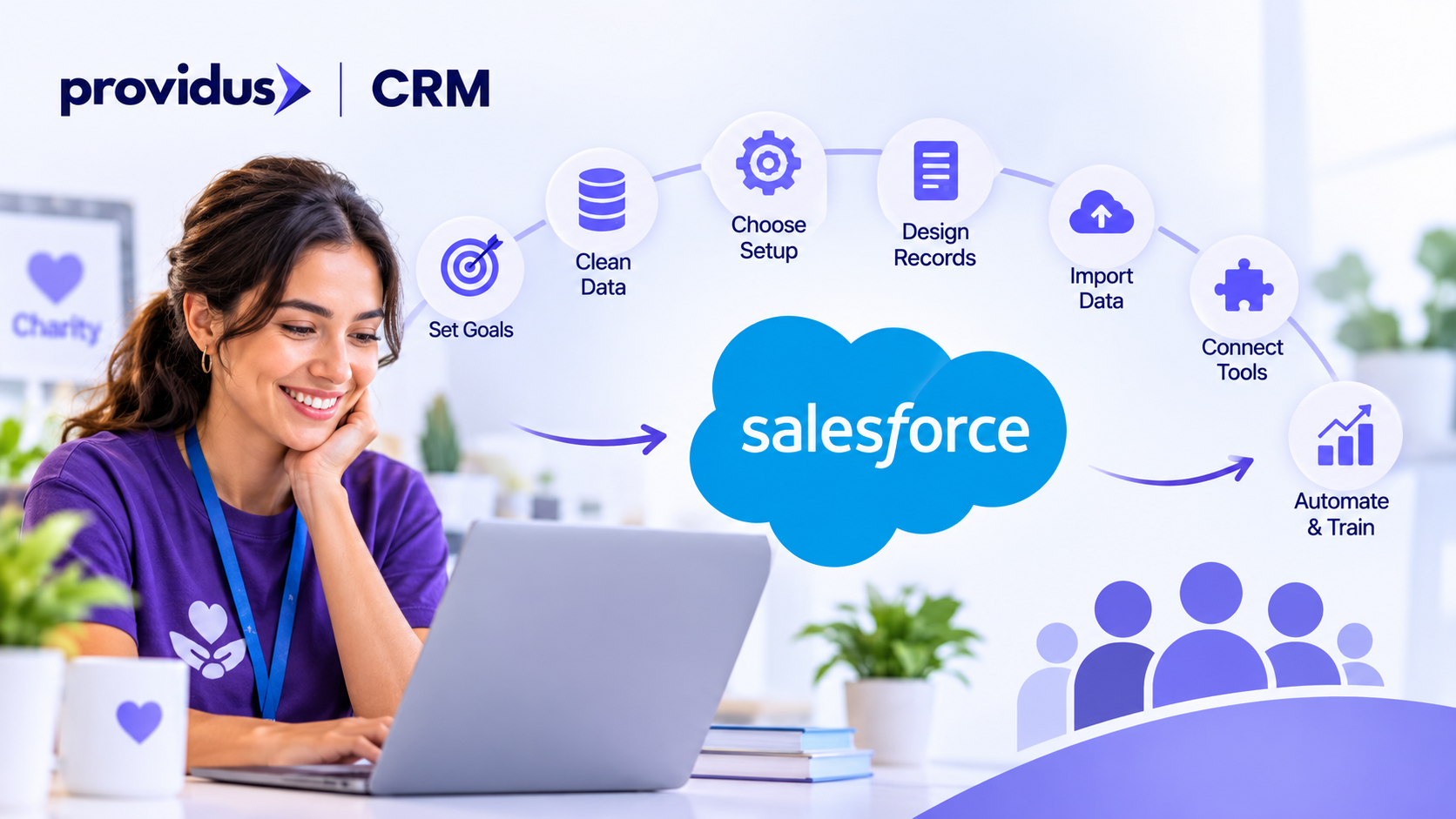
Most charities do not struggle to collect supporter data. They struggle to use it. Names sit in one spreadsheet, volunteer details in someone’s inbox, and gifts in another. Nobody sees the full picture, so reporting is slow, and thank-you messages are missed.
At this point, Salesforce can bring all of this into one place, but it only works when you set it up in the right order. The Charity Digital Skill Report has found that half of the charities (49%) say that their chief executive requires a clearer vision of what digital could achieve. Let's understand how to use Salesforce for Nonprofit for better outcomes.
Why Does the Order of Setup Matter?
Think of Salesforce as a house. Data is the foundation, and a Salesforce nonprofit partner helps ensure that foundation is strong before building automation and dashboards. These are the rooms you use, not the decorations you add first. Many nonprofit teams start with dashboards, only to find that the underlying records are incomplete, duplicated, or poorly connected.
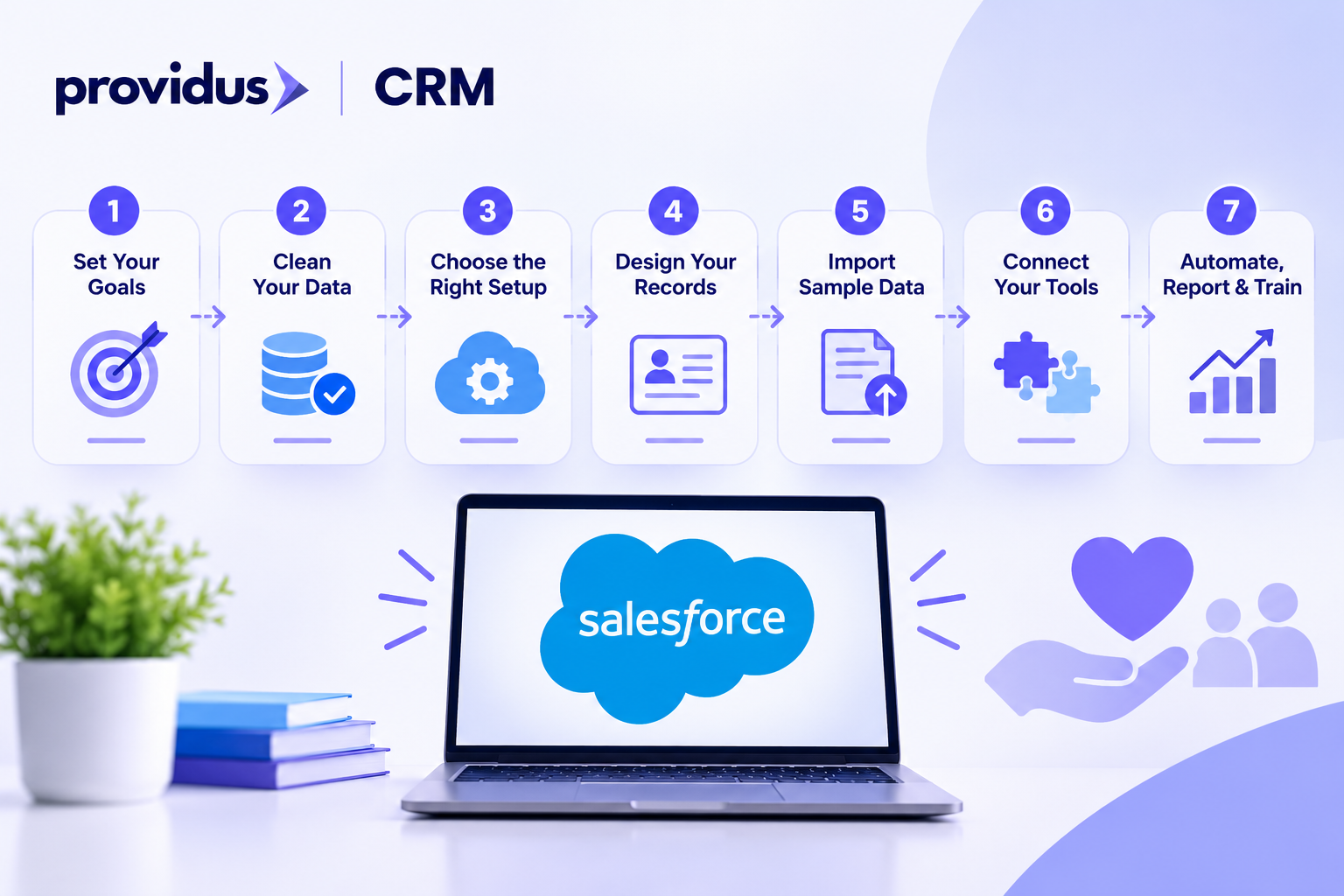
The steps below follow a safer path. Each one builds on the last, so nonprofits can work with a reliable system and pause at any stage while still having a functional Salesforce setup.
Do you like this personality?
Step 1: Write Down What You Want Salesforce to Do
Write down three or four plain goals, such as reporting to trustees in minutes, or seeing every gift from one supporter in one place. Those goals decide which data you move and which features you switch on. Share them with programmes, finance, and fundraising before you configure anything. Hearing those problems early prevents costly surprises later.
A short, agreed list is the test for every later request. If a new field, app, or automation does not serve one of those goals, leave it out.
Step 2: Gather and Clean Your Data
List every place donor, supporter, volunteer, and programme data lives. Remove duplicates, fix spellings, and agree on one format for names, addresses, dates, and gift amounts. Cleaning before import is far cheaper than repairing records afterwards.
Be firm about what you leave behind. A smaller set of accurate records is easier to trust than a full history full of gaps.
Step 3: Choose the Right Salesforce Setup
Eligible charities can apply for ten donated licences through Salesforce’s Power of Us programme, often called P10. Salesforce checks eligibility and provides one donation per organisation. Approved charities then choose a bundle. Salesforce Help describes this as ten Nonprofit Enterprise Edition licences, or ten Sales and Service Enterprise Edition licences. Current nonprofit materials also call the nonprofit bundle Agentforce Nonprofit, formerly Nonprofit Cloud. A Salesforce consulting partner can help charities understand these options and select the right bundle for their operational needs.
Confirm the exact name in the application before you design anything. Agentforce Nonprofit includes standard structures for supporters, gifts, and programmes. The Sales and Service bundle can still run the Nonprofit Success Pack (NPSP), but Salesforce ended new NPSP feature development in March 2023 and no longer starts new donated orgs on a preconfigured NPSP instance.
The licences are free. Implementation, data migration, training, extra users, and most connected apps are not. Match the bundle to a setup your team can maintain. A simple build people understand will outperform a complex org nobody will touch. A reliable Salesforce consulting partner can also help plan implementation around the charity's budget, resources, and long-term requirements
Step 4: Design Your Records and Fields
Design records only after you know which bundle you are on. Agentforce Nonprofit represents individuals as Person Accounts, stores money received on Gift Transaction, and stores pledges and regular gifts on Gift Commitment. NPSP, if you install it on Sales and Service licences, uses Household Accounts, Contacts, and Opportunities.
Do not mix the two models, and do not rebuild giving history as custom fields on the contact. Add only fields you will report on, such as communication preferences, consent channel and date, TPS and FPS status, and programme attendance where a standard object does not cover it. Use picklists so the same answer is not spelled ten ways. Mark only essential fields as required, so busy staff are not blocked from saving a record.
Step 5: Import a Small Sample First
Load about fifty records first, ideally in a sandbox, and check them before any full import. Do gifts sit under the right supporters? Do names, addresses, and Gift Aid flags match the source file?
Once the sample is right, migrate in stages: people first, then gifts, then recurring schedules. Ask two colleagues who did not build the import to find a supporter’s history. If they cannot do it within a minute, fix the page layout before you load the rest.
Step 6: Connect Your Other Tools
Payment tools, donation forms, and your email platform should write into Salesforce automatically, so nobody retypes a gift or a sign-up. Connect one system first, usually your main donation form, and confirm the gift lands on the right supporter before you add the next.
Connecting everything at once makes errors hard to trace. Change one thing, test it, then move on.
Step 7: Automate, Report and Train
Start with a few automations that serve the goals from step 1, such as a thank-you email after a gift and a task when a regular gift lapses. Build two or three dashboards that answer those same goals, not a dashboard for every team.
Train each user on the tasks they will perform, using records from your charity. Book a follow-up a month later for the questions that only appear in daily use.
How Do You Know a Salesforce Rollout is Working?
You can check three clear signs after the first month, and those are mentioned below.
- Staff can find a supporter’s history in seconds.
- Trustee reports no longer need manual copying.
- Thank-you messages go out on time.
If one sign is missing, return to the matching step and adjust.This is how to use Salesforce for Nonprofits with growing confidence. But here is another question: what about consent and data protection?
Supporter records are personal data, so record how and when each person agreed to hear from you. A 2020 Fundraising Magazine CRM survey of 230 organisations, reported by Civil Society, has found that only 26% of charities recorded Telephone Preference Service status in their CRM. You should build these fields into step 4, not after launch, because doing this early mainly protects both supporters and the reputation of your charity.
What Are The Mistakes That Slow Down The Charities?
Most charities slip in the same ways:
- Rushing the import: loading everything at once makes errors hard to find and fix.
- Adding too many fields: every extra field is one more thing your team must fill in correctly.
- Skipping training: people use only the tasks they have practised.
- Choosing features before agreeing goals: this leaves paid tools unused.
- Focusing on technical skill over patience: success depends more on patience than on technical skill.
- Launching big instead of steadily: small, steady progress beats a big launch that confuses everyone.
Get Help From Certified Consultants With Your Nonprofit’s Salesforce Setup
ProvidusCRM is a certified Salesforce partner that supports charities with Salesforce Implementation Services and also builds setups around real team workflows. So if you want a plan that is built around your own team, contact us directly so that we can understand your objectives and give you an implementation plan.
Conclusion
The path is simple: set goals, clean the data, confirm the licence bundle, design records on the standard objects, test a sample, connect one tool at a time, then automate and train. Follow that order, and the project stays controlled, instead of becoming a dashboard nobody trusts.
Frequently Asked Questions
1. How long does a first Salesforce phase take for a small charity?
Usually a few weeks, depending on data quality and how many goals you set.
2. Can Salesforce record Gift Aid declarations?
Yes, declarations can be stored and reported on, often with a connected app for HMRC claims.
3. What should we do with old spreadsheets afterwards?
Archive them as read-only once your team has checked the migrated records.
4. Do trustees need their own Salesforce logins?
Not always, as dashboards can be emailed to them on a schedule.
5. Can staff use Salesforce away from the office?
Yes, the Salesforce mobile app lets field teams view and update records.